Salta al contenuto
  • Categorie
  • Recenti
  • Tag
  • Popolare
  • Utenti
  • Gruppi
Skin
  • Light
  • Cerulean
  • Cosmo
  • Flatly
  • Journal
  • Litera
  • Lumen
  • Lux
  • Materia
  • Minty
  • Morph
  • Pulse
  • Sandstone
  • Simplex
  • Sketchy
  • Spacelab
  • United
  • Yeti
  • Zephyr
  • Dark
  • Cyborg
  • Darkly
  • Quartz
  • Slate
  • Solar
  • Superhero
  • Vapor

  • Predefinito (Nessuna skin)
  • Nessuna skin
Collassa
Olive Oil Tourism Logo
  1. Home
  2. Getting Started / Come iniziare sulla piattaforma
  3. πŸ‡¬πŸ‡§ How to buy an experience

πŸ‡¬πŸ‡§ How to buy an experience

Pianificato Fissato Bloccato Spostato Getting Started / Come iniziare sulla piattaforma
1 Post 1 Autori 41 Visualizzazioni 1 Seguito
  • Da Vecchi a Nuovi
  • Da Nuovi a Vecchi
  • PiΓΉ Voti
Rispondi
  • Topic risposta
Effettua l'accesso per rispondere
Questa discussione Γ¨ stata eliminata. Solo gli utenti con diritti di gestione possono vederla.
  • S Non in linea
    S Non in linea
    Support
    scritto su ultima modifica di Support
    #1

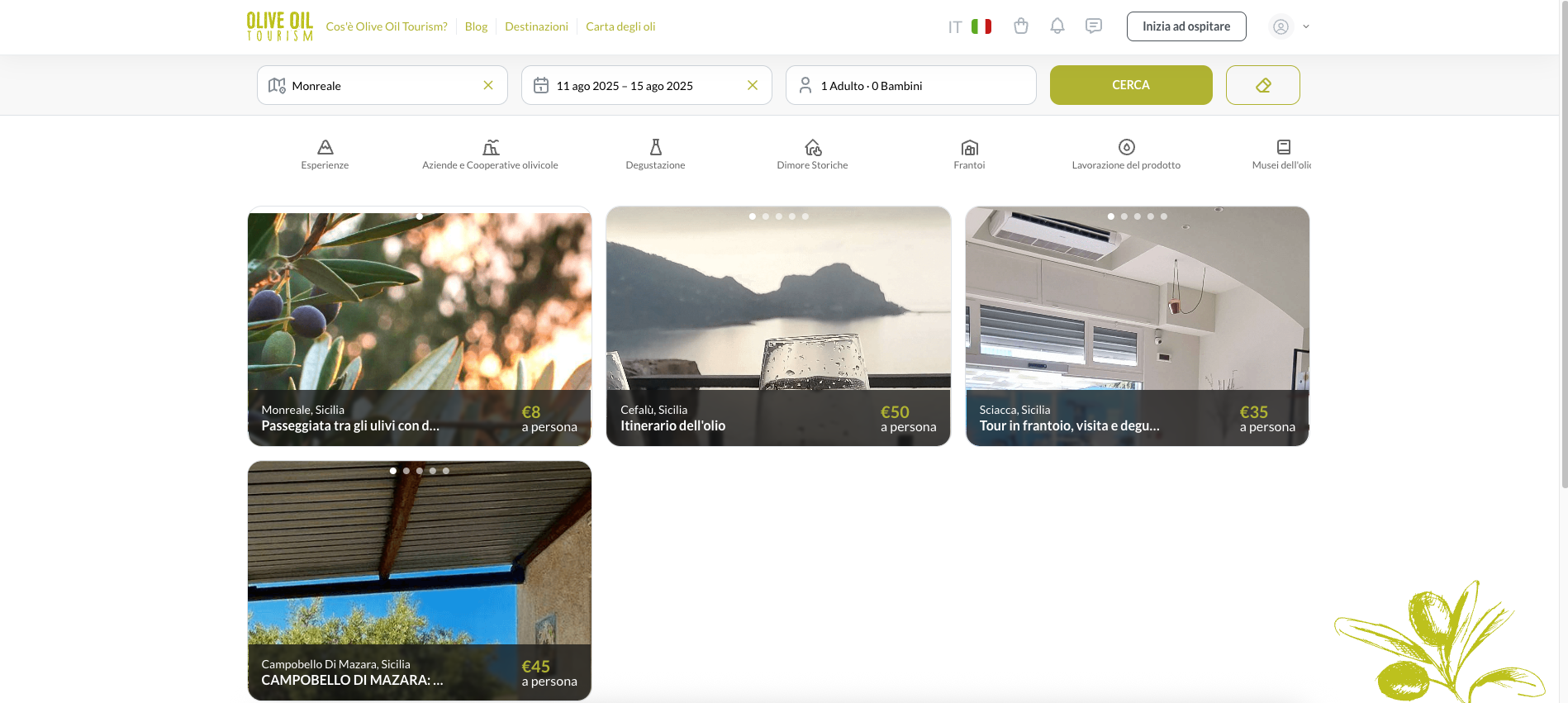
    1- Search for the desired experience

    Use the search bar or browse the categories to find the experience you'd like.
    Screenshot 2025-08-07 alle 10.20.15.png

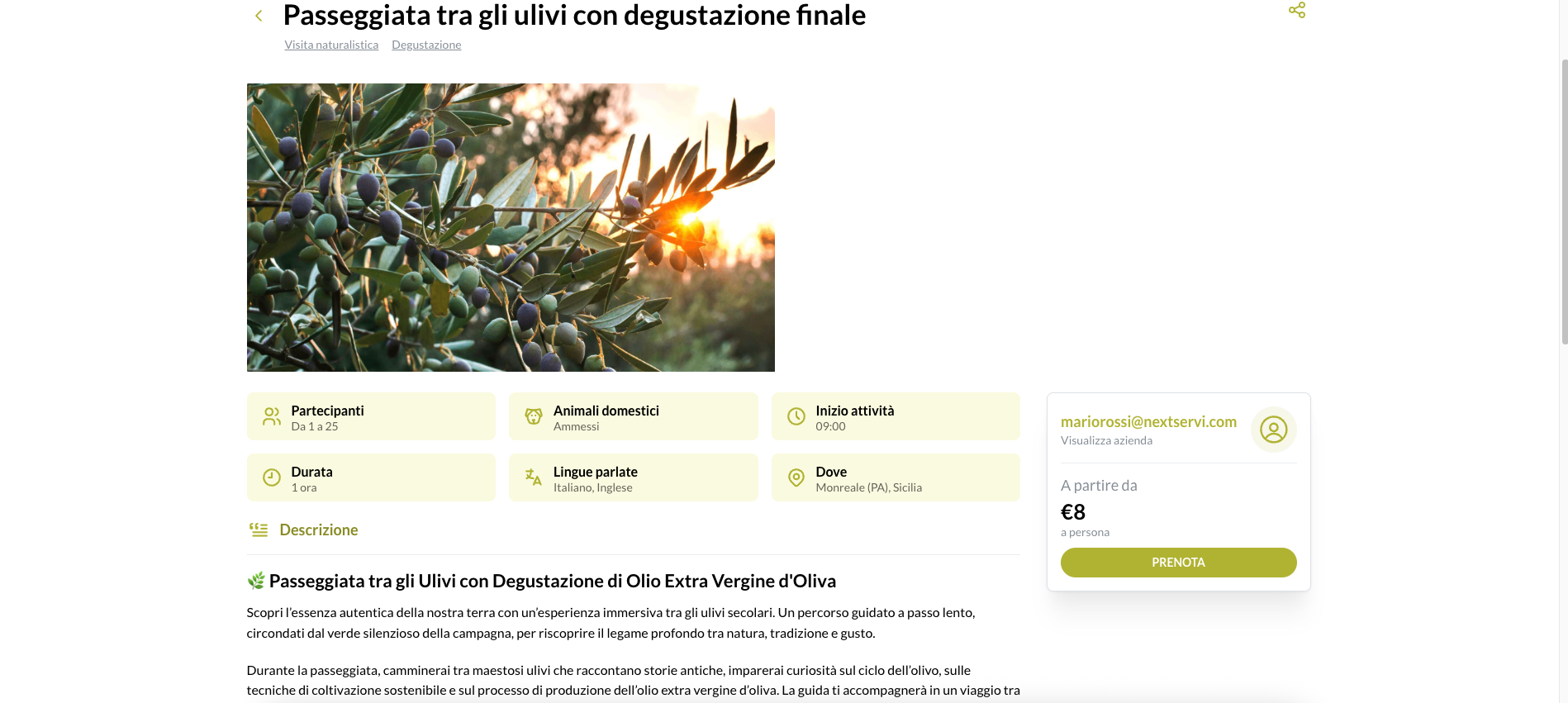
    2- Book your chosen experience

    After finding the experience that appeals to you, click the "Book" button to begin the booking process.
    Screenshot 2025-08-07 alle 10.20.29.png

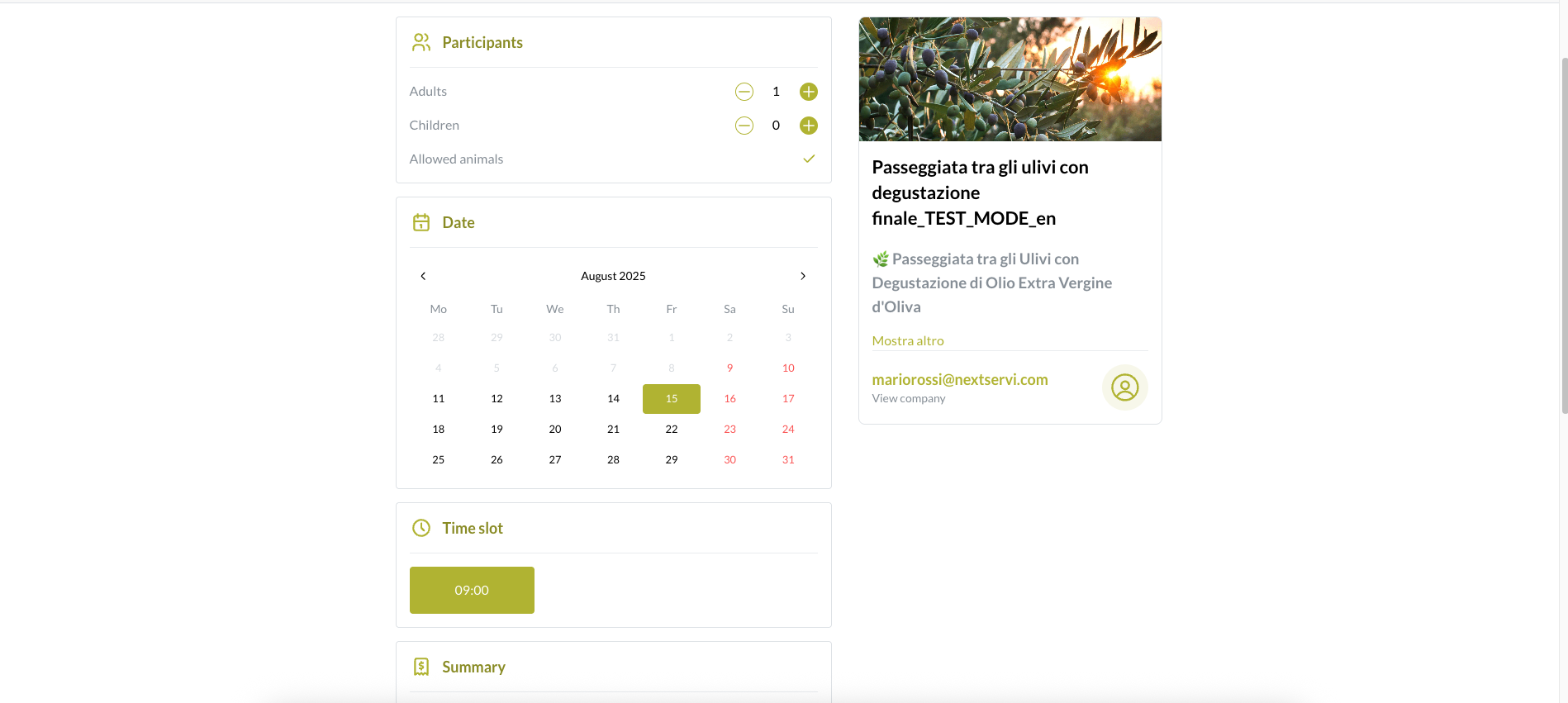
    3- Select participants, dates, and time slot

    Choose the number of participants, date, and time slot for the experience.
    Screenshot 2025-08-07 alle 10.26.24.png

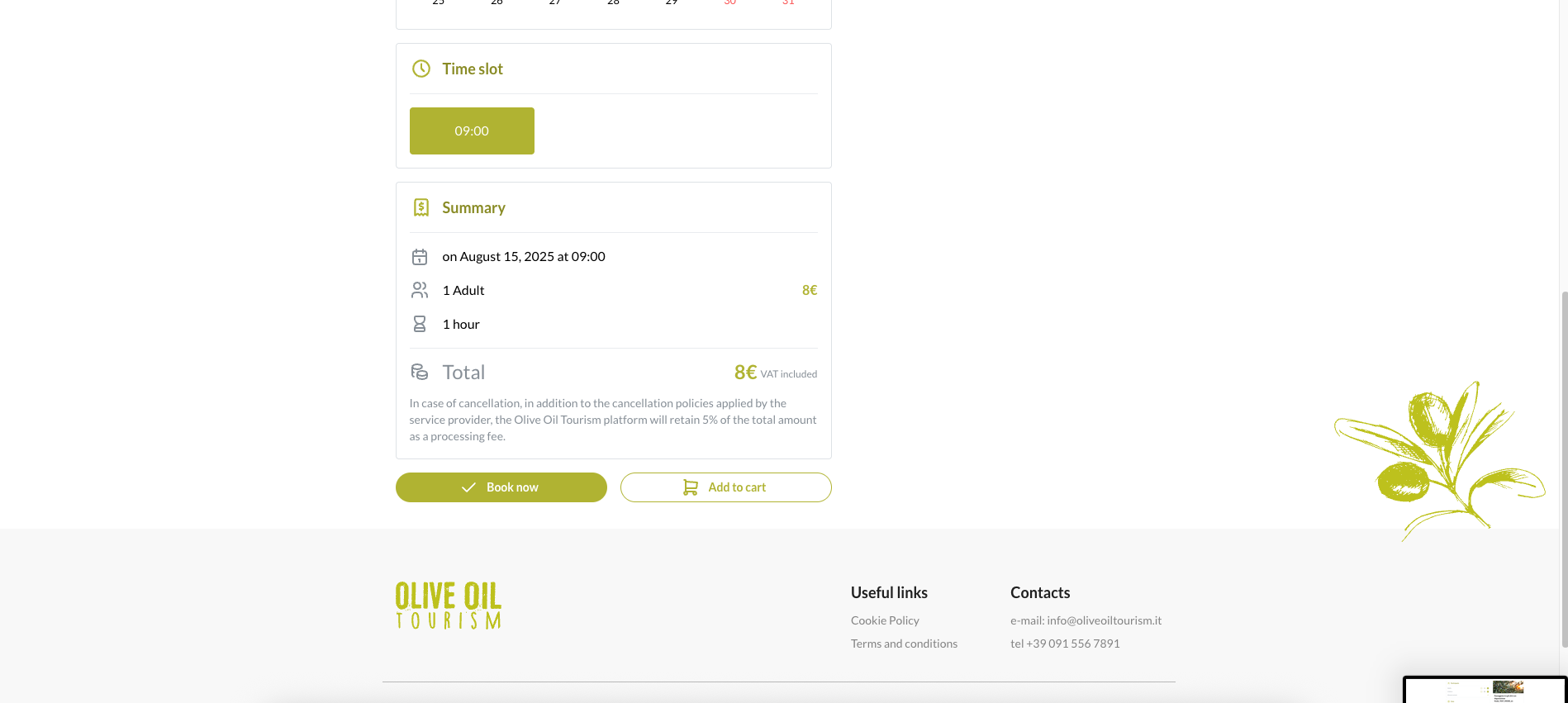
    4- Review the order summary and confirm the booking

    Carefully review the order summary to avoid errors, then click the "Book" button again.
    Screenshot 2025-08-07 alle 10.26.29.png

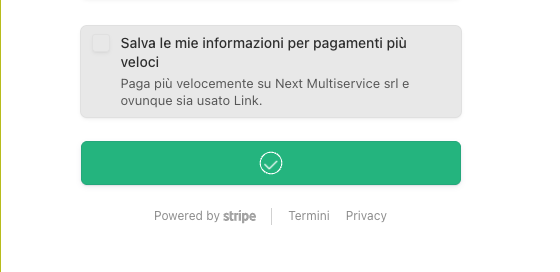
    5- Enter payment information

    On the next screen, enter your payment card details. Once complete, click "Pay" to complete the booking. If everything is correct, you will see a confirmation checkmark.
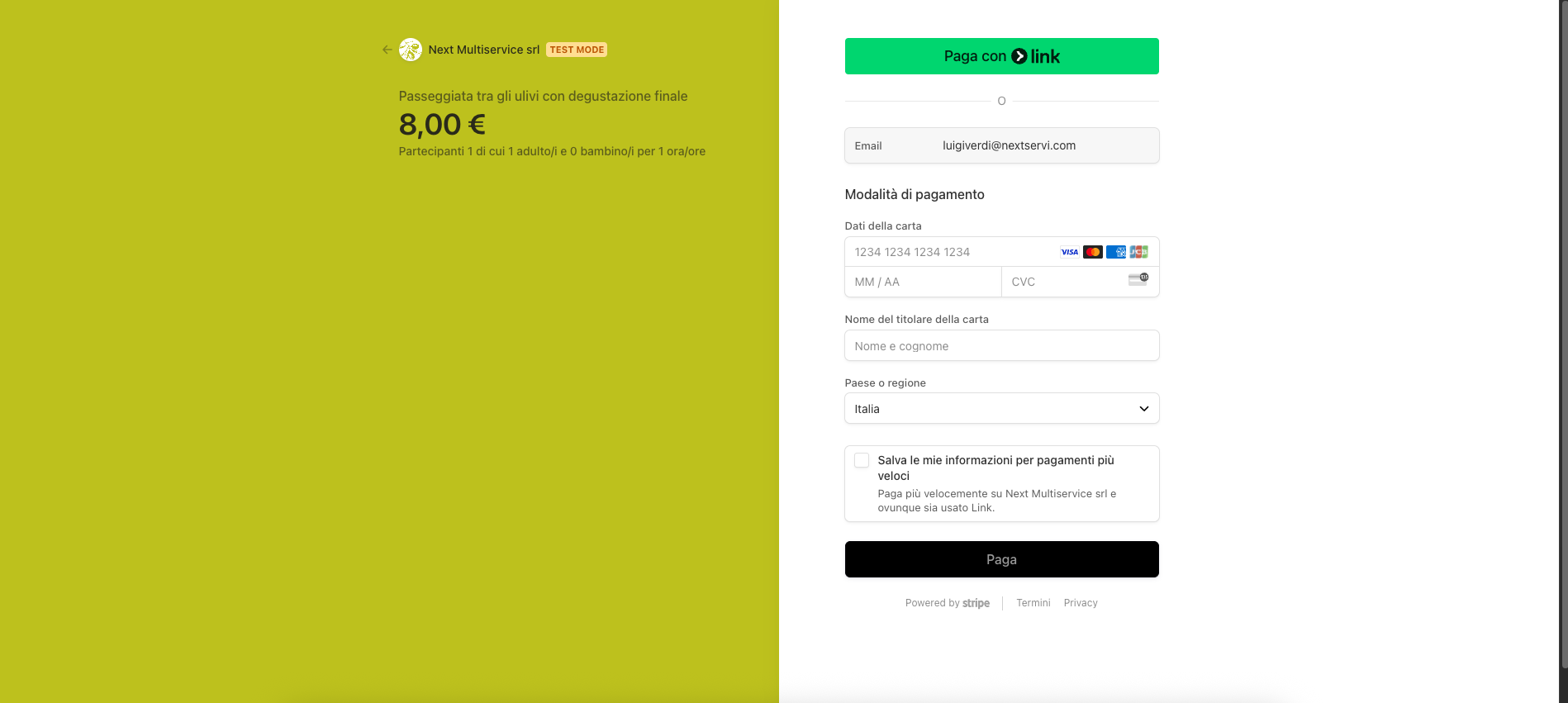
    Screenshot 2025-08-07 alle 10.22.14.png
    Screenshot 2025-08-07 alle 10.22.32.png

    6- View your order

    You can view all your bookings in the "My Orders" section of your profile.
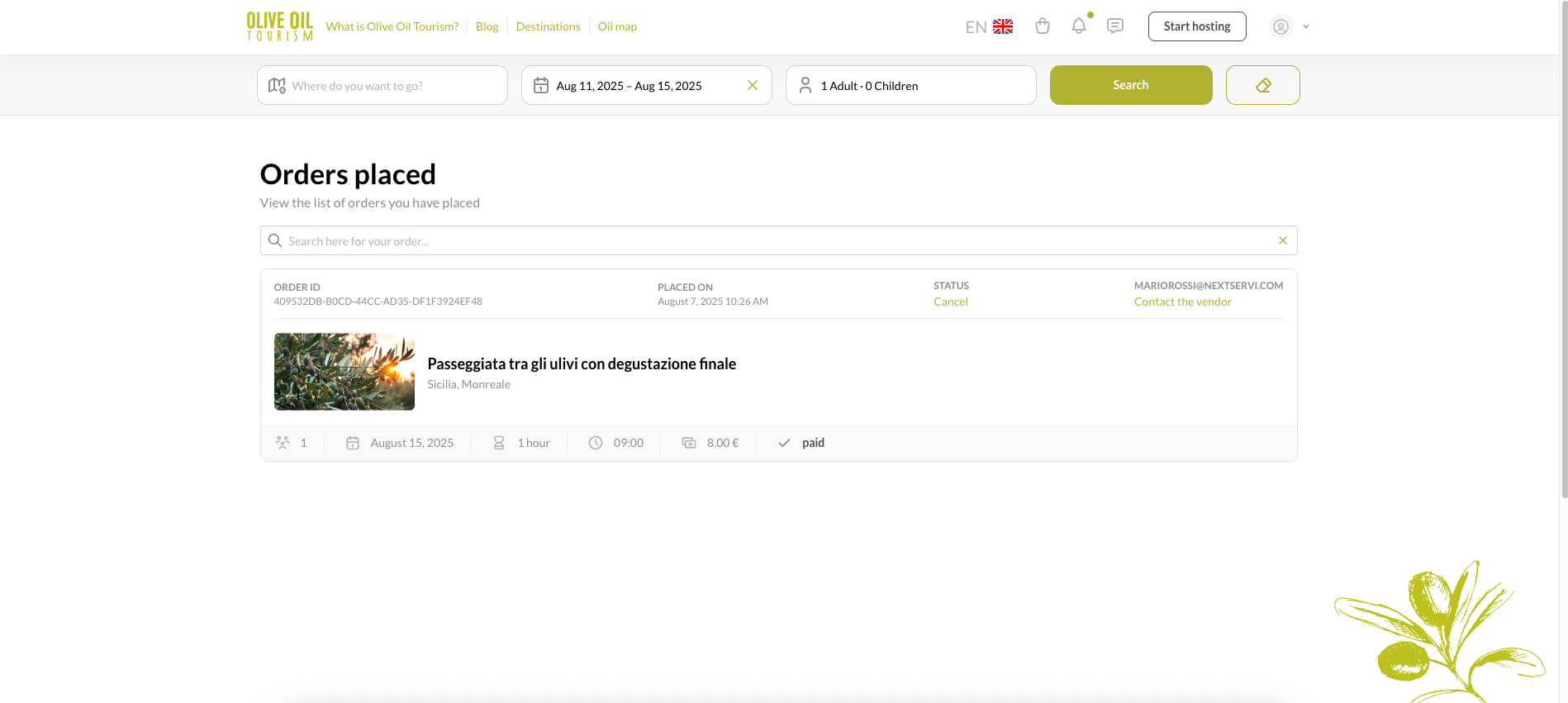
    Screenshot 2025-08-07 alle 10.27.03.png

    1 Risposta Ultima Risposta
    0
    • S Support ha bloccato questa discussione su
    Rispondi
    • Topic risposta
    Effettua l'accesso per rispondere
    • Da Vecchi a Nuovi
    • Da Nuovi a Vecchi
    • PiΓΉ Voti


    • Accedi

    • Non hai un account? Registrati

    • Accedi o registrati per effettuare la ricerca.
    • Primo post
      Ultimo post
    0
    • Categorie
    • Recenti
    • Tag
    • Popolare
    • Utenti
    • Gruppi